Global Elements
The Global Elements Module provides a centralized, searchable, and editable repository for global information that is used across the entire platform. Examples for such information are:
- Applicable Regulations
- Suppliers and their Information
- Glossary Terms
- ...and more.
It allows users to define, manage, and maintain standardized or product-independent data that can be referenced by all domain objects, such as:
- SOPs
- Work Instructions
- Products
- Templates / Documents
- ...and more.
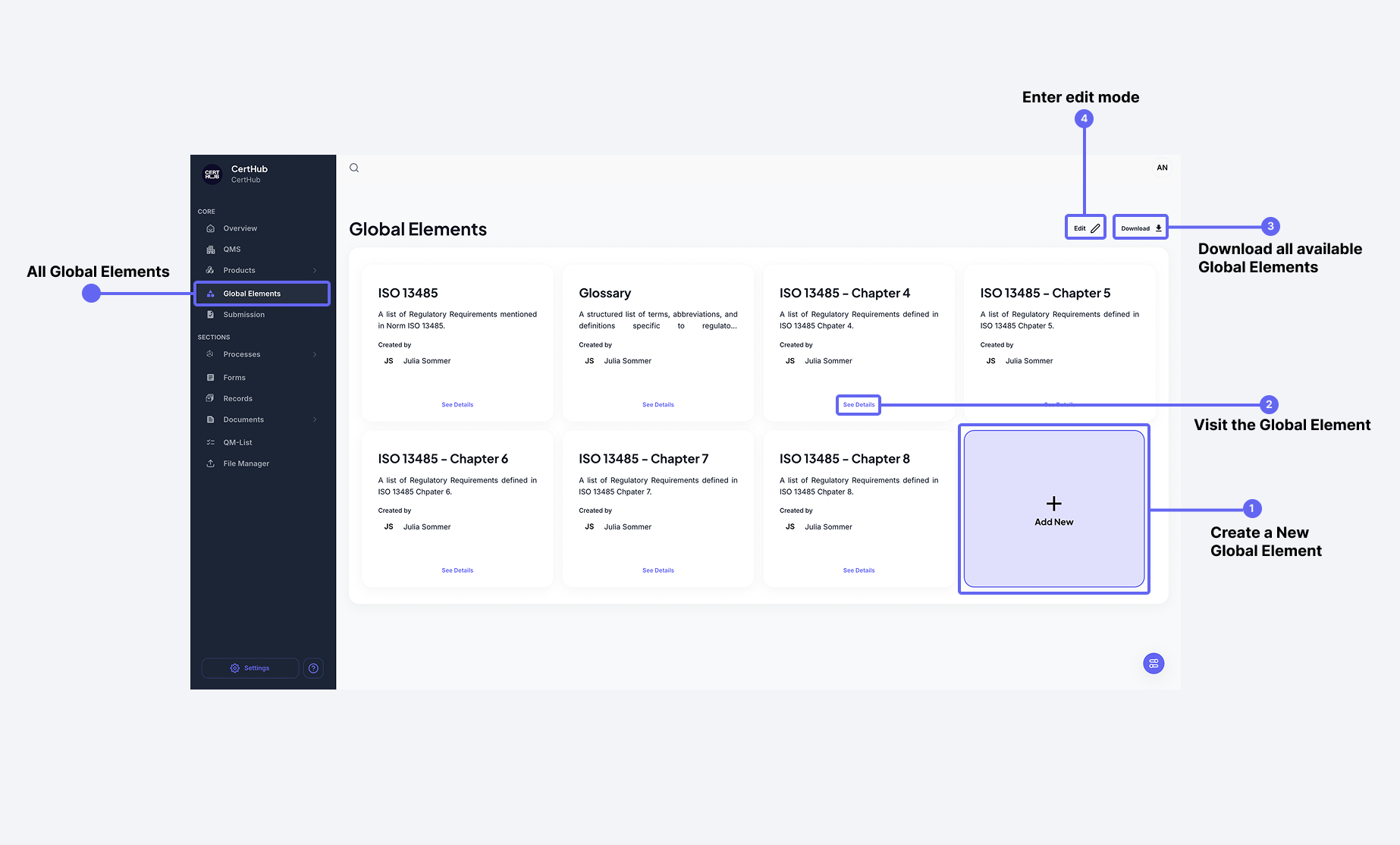 Global Elements Module provides a structured, customisable and flexible way to store global information
What makes it flexible?
Each Global Element entry represents a specific type of information and is structured via a customizable Table, defined in the Forms Editor. This determines:
- Which types of information are stored
- Which fields (columns) are shown in the Global Elements table
- How the data can be linked to other domain objects
Key Benefits
- Consistency across all domain areas
- Reusability of standardized information
- Efficient linking to SOPs, templates, and other documents
- Flexible structure through configurable forms
Creating a new Global Element
To create a Global Element, follow these simple steps:
- Assign a Unique Name – Choose a distinct name for your Global Element to ensure clarity and avoid duplication.
- Add a Description – Provide a brief, meaningful description to explain the purpose of the element.
- Define the Table Columns – Use the Forms Builder to structure the Global Element according to your needs.
Once created, your Global Element will be ready for use in your system.
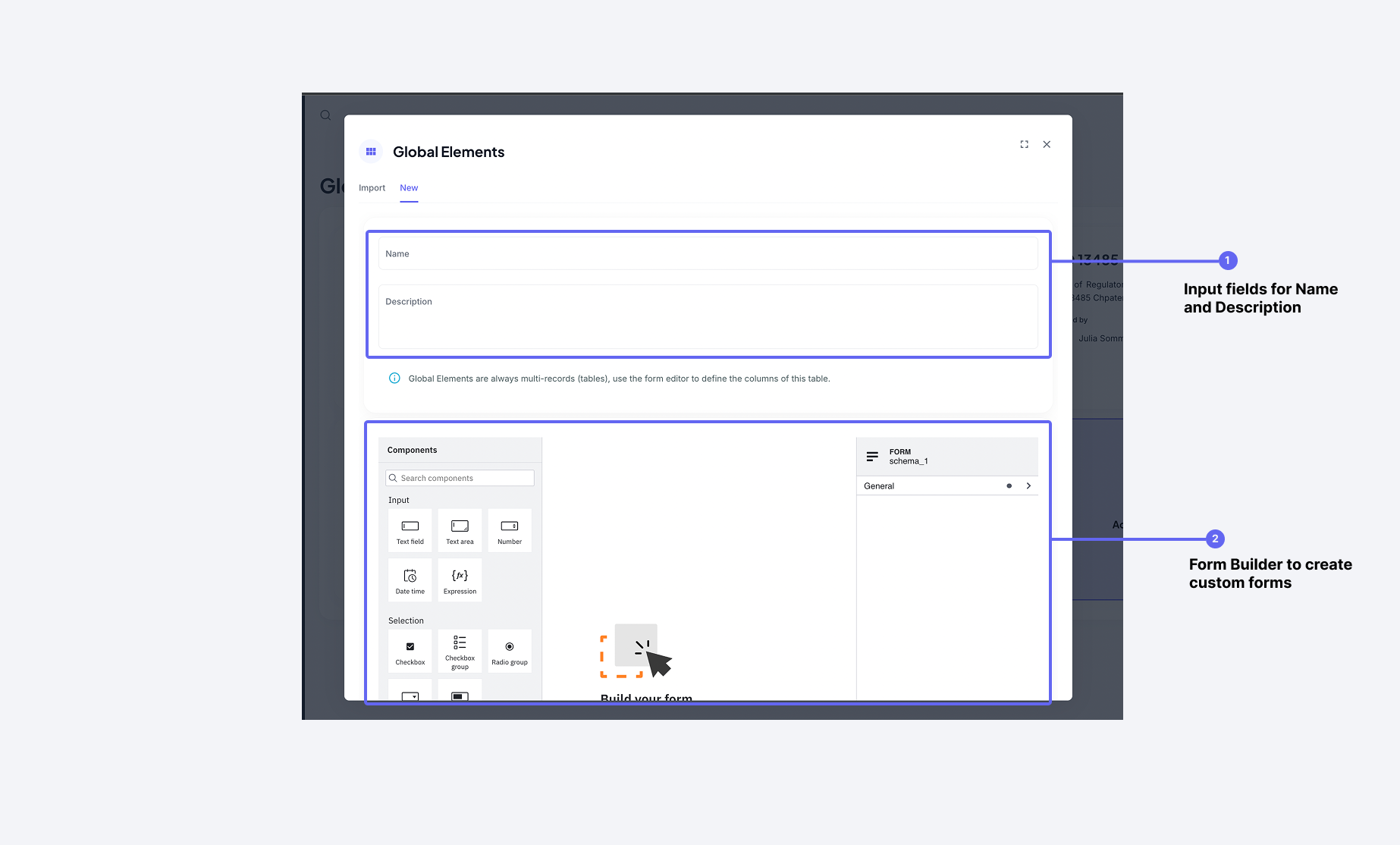 The creation dialog lets you specify basic information along with the Form for the Global Element
For detailed information about how the Form Builder works, see the Form Builder Guide.
Importing Global Elements
When creating a Global Element, you can also import data directly using one or multiple JSON documents. This allows you to quickly add new elements with predefined data.
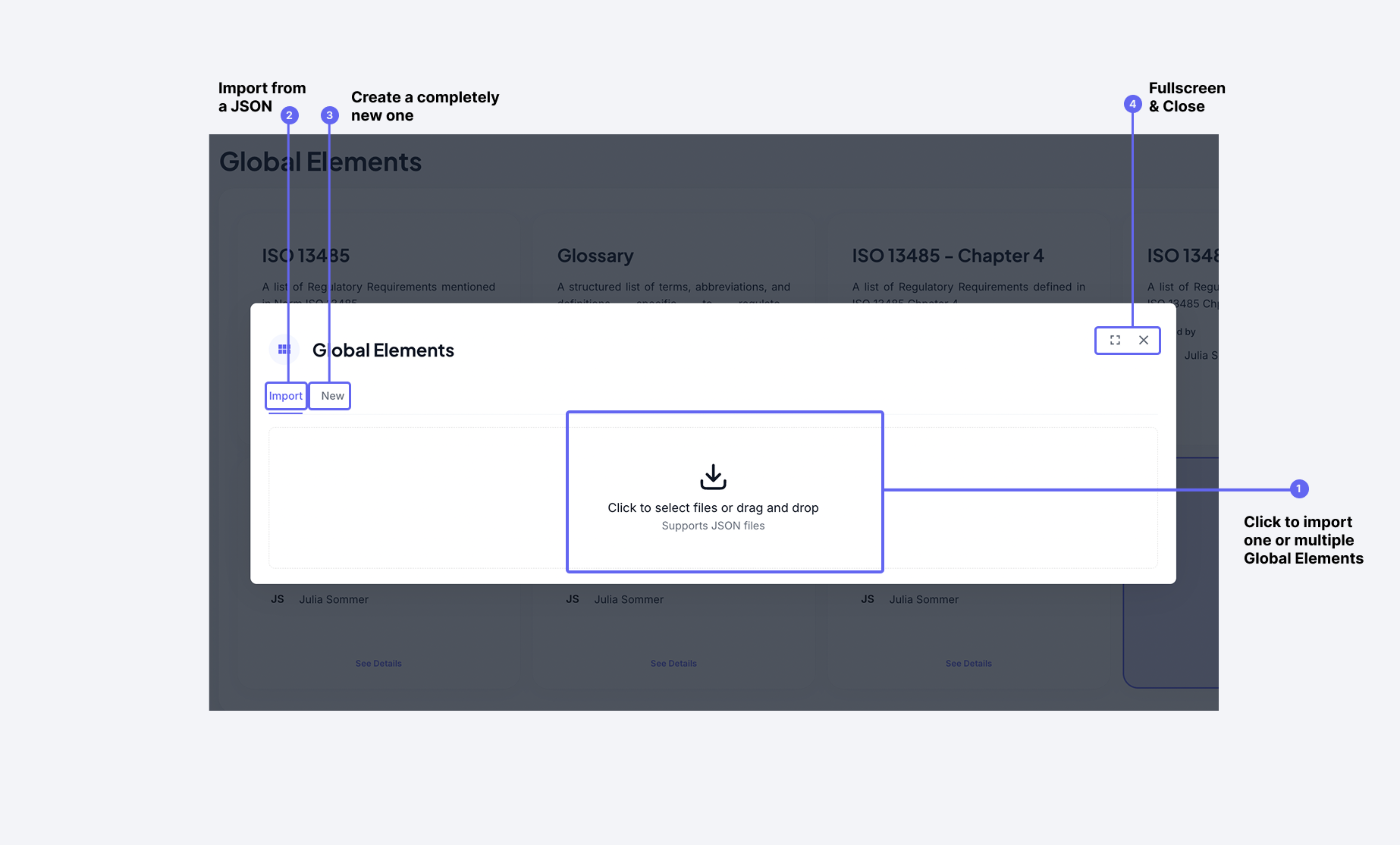 The import dialog allows you to reuse different Global Elements, to save time and efforts
For more information regarding how importing data works, check out Knowledge Topic Import Guide
Global Element Details
The Global Element Details section provides more information about a specific Global Element and its associated data. This section helps you to understand the structure and contents of a Global Element, ensuring efficient data management.
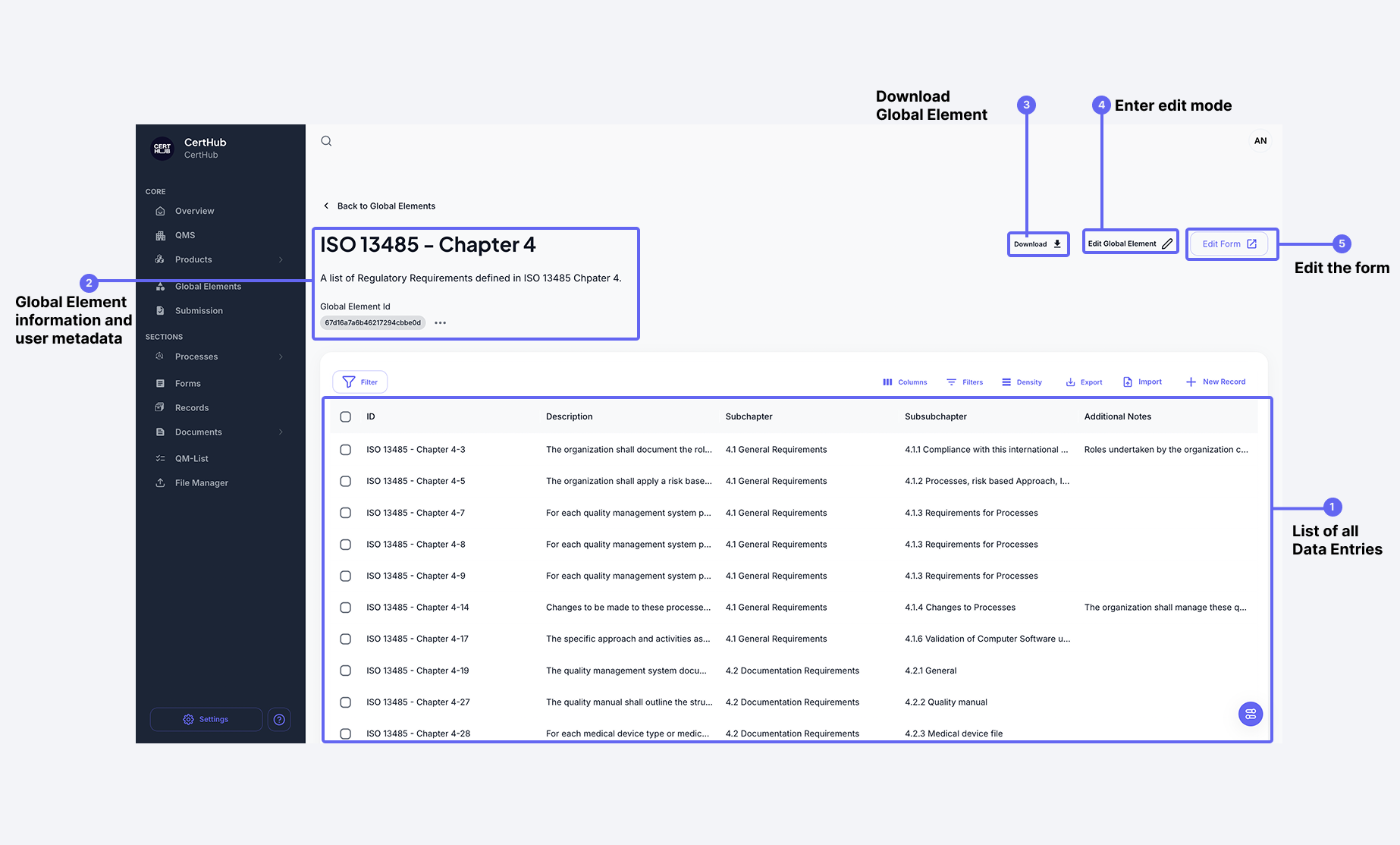 Global Element Details provides additional information about a particular Global Element and related data
Managing Global Elements
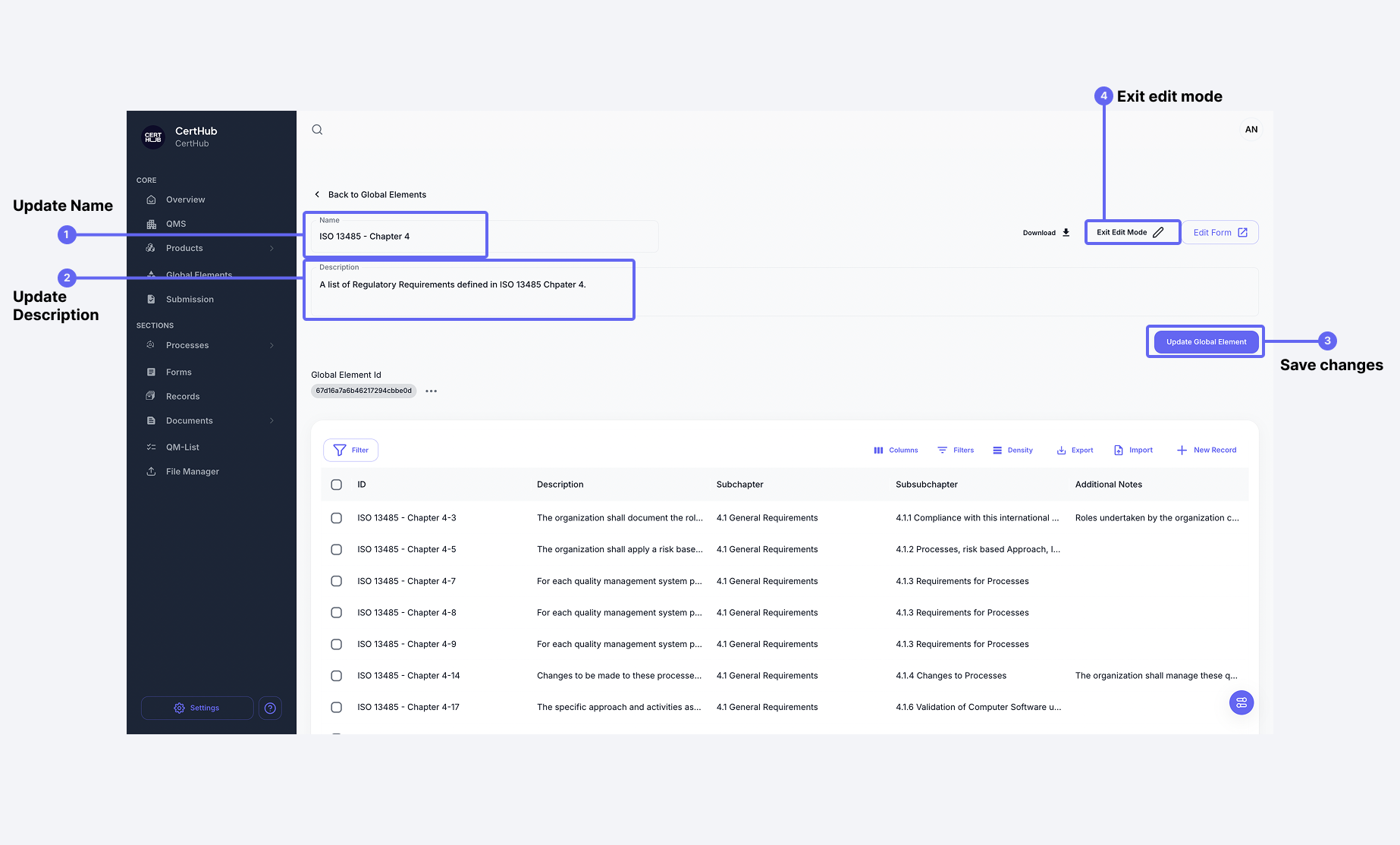
Editing Global Element information
The edit interface allows you to edit more comprehensive information of the Global Element, specifically Name and Description.
You can also delete a particular Global Element from the main Global Elements view.
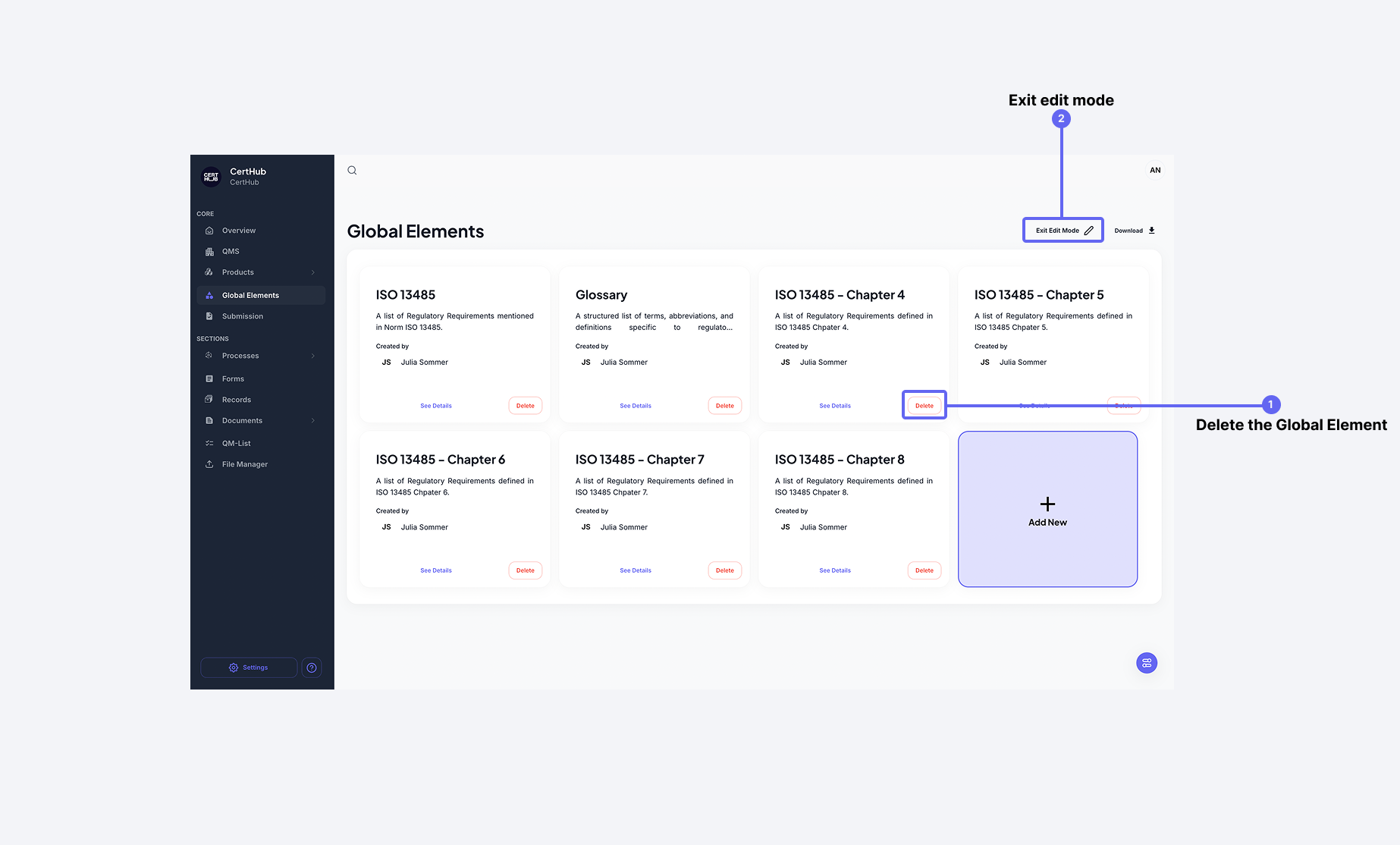
Be cautious, as deletion may affect dependent components or data linked to the element.
Editing the Global Element Schema
The Edit Form button allows you to edit and change the Table Columns for the related Global Element.
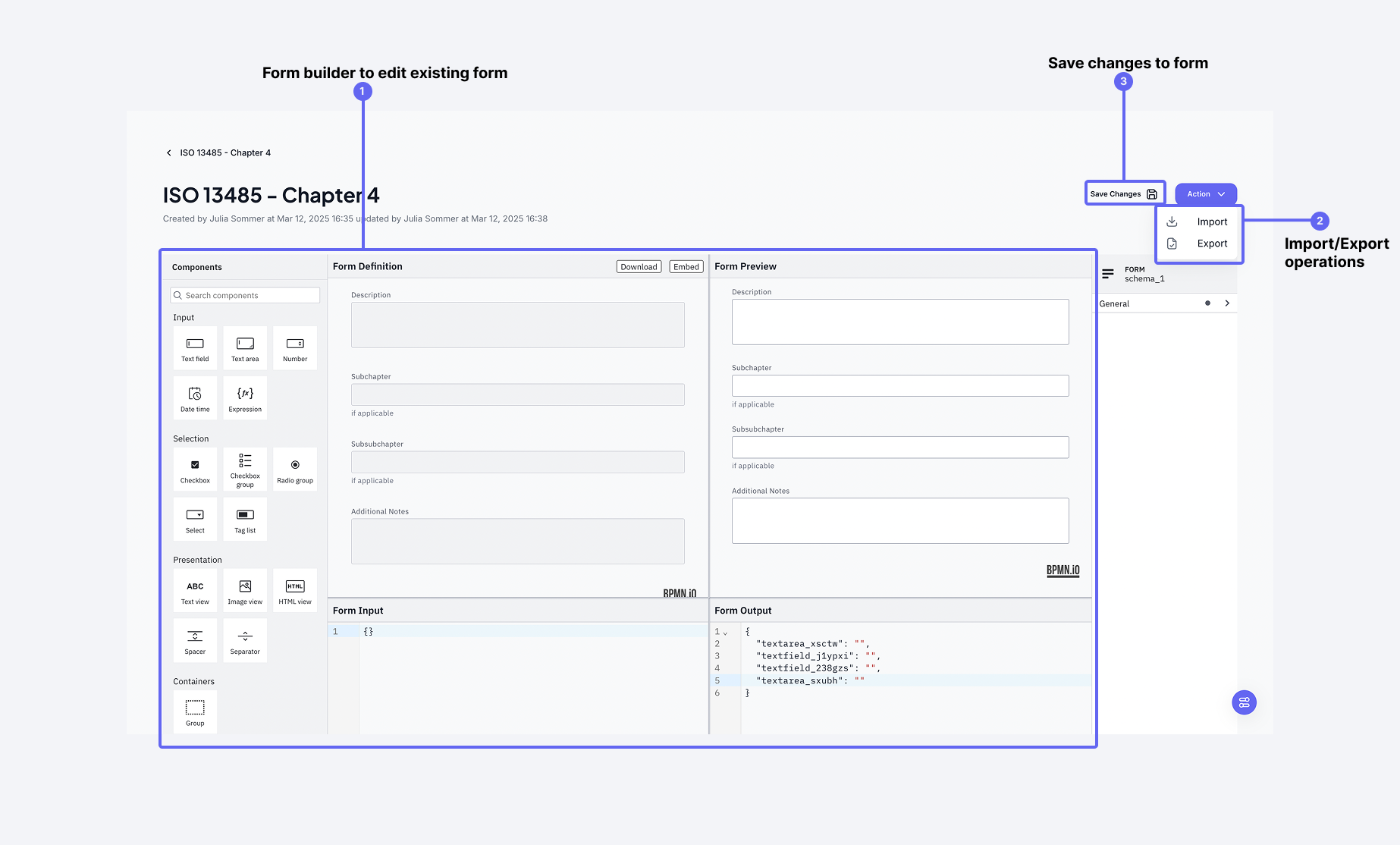 The Edit Form page allows you to edit the current schema with the help of Form Builder
For detailed information about how the editing Form Builder works, see the Form Builder Guide.
Data Entries
Data Entries provide detailed information about a specific Global Element. These entries store relevant data and are displayed in a structured format.
Key Features:
- Detailed Information – Each Data Entry contains specific details related to the Global Element.
- Tabular Representation – All Data Entries are presented in a table format for easy review, comparison, and management.
- Efficient Organization – The tabular format allows users to quickly locate, filter, and analyze data.
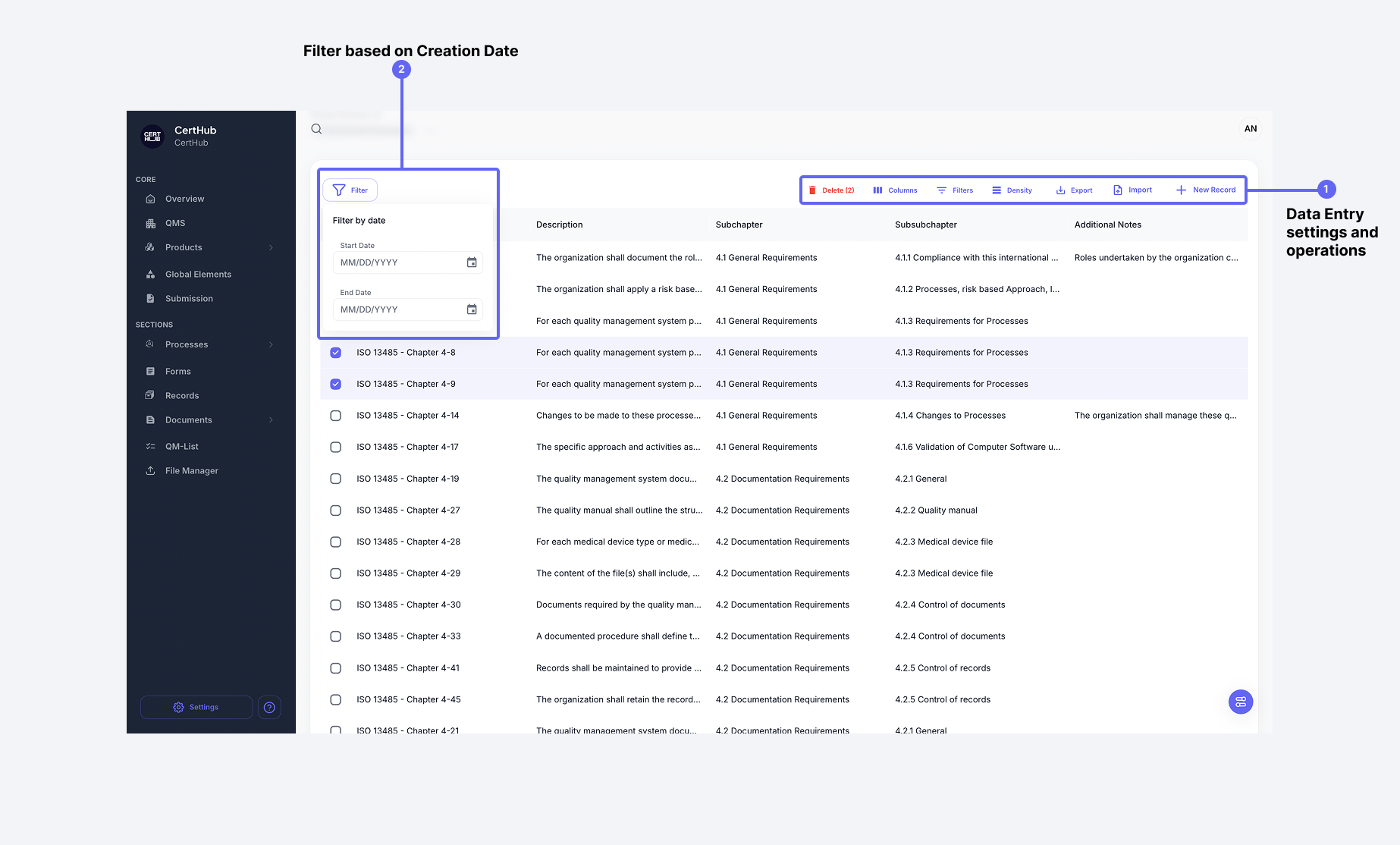 The Data Entries provide more information about a certain Global Element and is stored in a tabular format
Data Entry List Features
The Data Entry List interface offers:
-
Filtering Options
- Filter by any column
- Filter by Date
- Custom field filters
-
View Customization
- Column selection
- Sort options for any column
- Display density settings
- Custom views
-
Data Management
- Bulk operations
- Export to Excel
- Import capabilities
- Data Entry deletion
Modifying Individual Entries and Setting Traces
To access and modify the detailed content of a specific entry, click on the individual entry row in the table. This will open a drawer that displays:
- All the entry's detailed information
- Options to edit all content fields
- Ability to set and manage Traces (references to other objects)
- View relationships associated with the entry
The drawer interface provides a comprehensive view of the entry and allows for detailed modifications without leaving the current context.
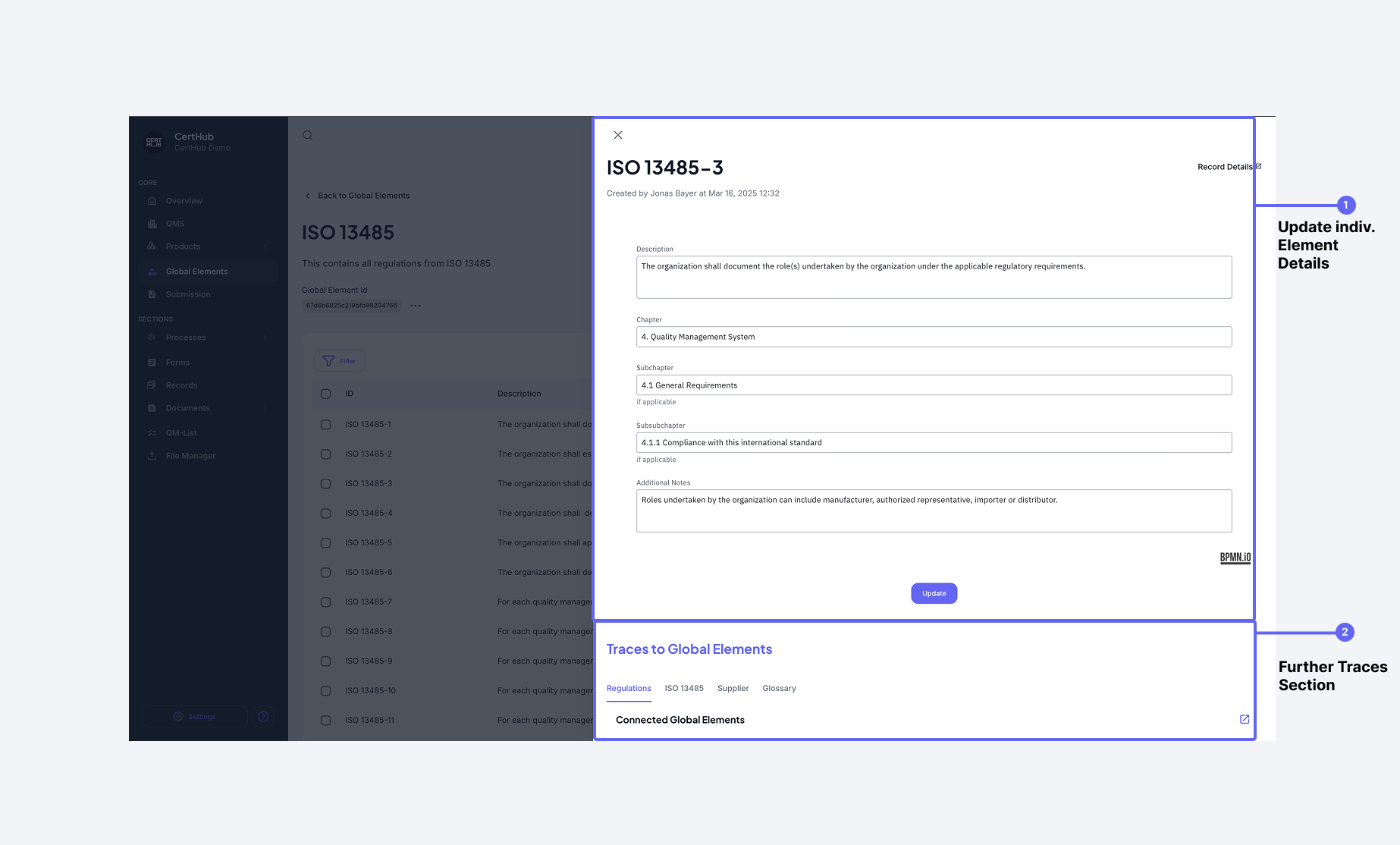 The entry drawer provides access to all details and allows setting traces to other objects
Traces allow you to create relationships between Global Element entries and other objects in the system, enhancing traceability and data connectivity. See the next section for more details on referencing.